How to make a stop-motion movie on a Mac
Your Mac can be a stop-motion studio: a big screen, a keyboard to snap with, and any camera you have. Here's how to set it up and make your first movie.
- Time
- About 45 minutes
- Works on
- macOS 15.6 or later
- Camera
- Webcam, built-in or iPhone
- Cost
- Free
Step by step
-
Pick a camera
Any camera the Mac can see works: the one built into a MacBook, iMac or display, a USB webcam, or your iPhone through Continuity Camera. A Mac mini or Mac Studio has no camera of its own, so plug one in.
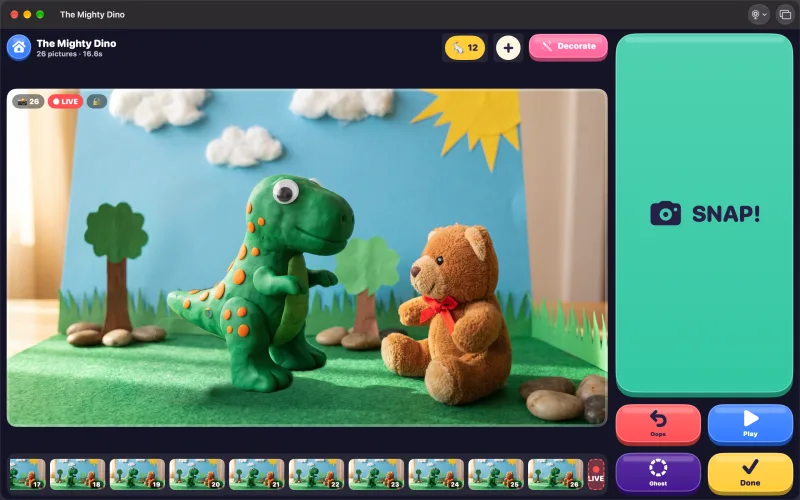
Open Stop Motion Movie Maker, click New Movie, and choose the camera from the Camera menu in the toolbar.
-
Aim the camera at the set
A webcam is easiest: clip it to a small tripod or a gooseneck stand facing a tabletop set. With a built-in camera, bring the set to the Mac instead: in front of the screen, raised on a box to camera height. Then leave the camera alone: if it moves, the whole set jumps.
-
Light it with a lamp
Use a lamp, not a window, and keep your shadow off the set. Most Mac cameras keep adjusting brightness and color on their own. The app locks what it can after the first picture, but many webcams don't allow it, so steady light is what keeps the pictures matching.
-
Snap with the space bar
Press Space to snap, move your character a tiny bit, and press it again. Delete is Oops, P plays the movie so far, and G turns Ghost on and off, so each move lines up with the last picture. The Movie menu has them all too.
Typing on a laptop can wobble its camera. Use a separate keyboard, a foot pedal or a game controller, or turn on Auto Snap from the + menu and just take your hands away.
-
Put the stage on a second screen
Choose Window › Stage Window (⌥⌘2) and drag the stage onto a second display, a TV or a projector. Everyone watches the movie grow while you work in the studio window: great for classrooms and libraries.
-
Decorate and save
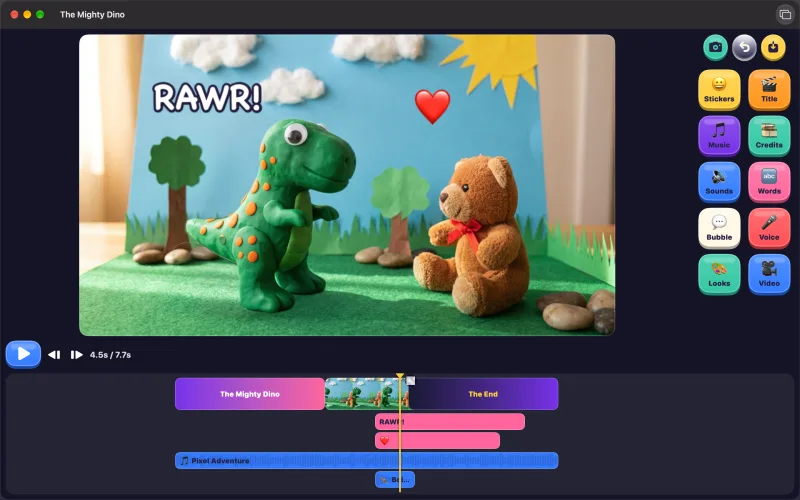
Click Decorate (⇧⌘D) to add words, speech bubbles, 54 sound effects, a title and rolling credits. With Stop Motion Pro, drag pictures in from Finder and they become part of the movie.
Click Save, or press Done twice, and the movie goes to Photos. With iCloud on, it's on your iPhone and iPad too.
Tips
Don't bump the desk
A knock moves the camera, and the set jumps.
Turn off Center Stage
Studio Display and iPhone cameras follow faces. Switch it off from the Video icon in the menu bar.
The Mac stays awake
It won't sleep while the camera is on.
Stop any time
Every picture saves as you take it.
Questions
Can you make a stop-motion movie on a Mac?
Yes. Stop Motion Movie Maker runs on macOS 15.6 or later and works with the Mac's own camera, a USB webcam, or an iPhone through Continuity Camera.
What's the best camera for stop motion on a Mac?
An iPhone through Continuity Camera gives the sharpest picture. A USB webcam on a small tripod is the easiest to aim at a tabletop set.
My Mac doesn't have a camera. Can I still make stop motion?
Yes. Plug in a USB webcam, or use your iPhone as the camera with Continuity Camera.
Why does the picture keep getting brighter and darker?
The camera is adjusting itself to changing light. Use a lamp instead of a window, keep shadows off the set, and turn off video effects like Studio Light from the Video icon in the menu bar.
Can I keep working on the movie on my iPhone or iPad?
Yes. With iCloud on, your movies show up on every iPhone, iPad and Mac signed in to the same Apple Account.
Do I have to buy Stop Motion Pro again for the Mac?
No. Stop Motion Pro is a one-time purchase that works on your Mac, iPhone and iPad. Use Restore Purchase on the others.
Using your iPhone as the camera? Set up Continuity Camera for stop motion. New to stop motion? Start with how to make a stop-motion movie, or browse all the guides.