Stop motion with Continuity Camera: your iPhone as the Mac's camera
Continuity Camera turns your iPhone into a camera for your Mac. It's sharper than most webcams, and it can stand anywhere near the set while you animate on the big screen.
- Set-up
- About 10 minutes
- iPhone
- XR or later, iOS 16 or later
- Mac
- macOS 15.6 or later
- Cost
- Free
Step by step
-
Check what you need
An iPhone XR or later with iOS 16 or later, and a Mac with macOS 15.6 or later for Stop Motion Movie Maker. Both need the same Apple Account, with two-factor authentication, and Wi-Fi and Bluetooth on.
On the iPhone, check that Settings › General › AirPlay & Continuity › Continuity Camera is on. It is unless someone turned it off.
-
Mount the iPhone
Put the iPhone on a tripod with a phone clamp, facing the set, with its back cameras toward the toys and nothing in front of them. Lock it and leave it still. Sideways gives a wide movie and lets the Mac find the iPhone by itself.
Plug it into the Mac or a charger, since a long session uses a lot of battery. Over a USB cable, Continuity Camera works without Wi-Fi too.
-
Pick the iPhone in the app
Open Stop Motion Movie Maker on the Mac, click New Movie, and open the Camera menu in the toolbar. Your iPhone is listed by name: pick it.
Not there? Make sure the iPhone is locked and close by, or connect it with a USB cable and tap Trust on the iPhone if it asks.
-
Turn off video effects
While a camera is on, the Mac's menu bar has a Video icon. Click it and turn off Center Stage, Portrait, Studio Light and Reactions.
Center Stage moves and zooms the picture to follow faces, Portrait and Studio Light can change the background from one picture to the next, and Reactions can drop balloons or fireworks into your movie when they spot a hand gesture.
-
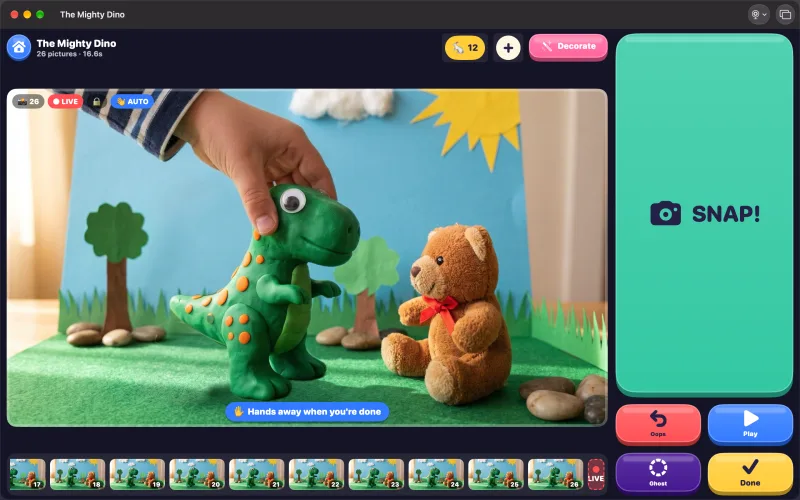
Light it and snap
Use a lamp, not a window. Through Continuity Camera the iPhone sets its own brightness and color, and the app can't lock them, so steady light is what keeps every picture matching.
Press Space to snap, move a toy a tiny bit, and snap again. Turn on Ghost to line up each move, or Auto Snap to snap once your hands are out of the picture.
-
Keep it connected
Don't unlock or pick up the iPhone while you animate: that pauses the camera, and so does answering a call. If the picture stops, lock the iPhone, put it back on the mount, and pick it again from the Camera menu. Your pictures are safe: each one saves as you take it.
Tips
Move, don't zoom
Frame the set by moving the iPhone closer or farther.
Stay close
Keep the iPhone within about 30 feet of the Mac.
Tape the cable down
A tugged cable moves the iPhone.
Or snap on the iPhone
The iPhone app locks focus, exposure and white balance, and the movie syncs to the Mac.
Questions
Can I use my iPhone as a stop-motion camera on a Mac?
Yes. With Continuity Camera, Stop Motion Movie Maker on the Mac takes its pictures with your iPhone's camera, wirelessly or over a USB cable.
Which iPhones work with Continuity Camera?
iPhone XR or later with iOS 16 or later. The Mac needs macOS 15.6 or later for Stop Motion Movie Maker.
Why isn't my iPhone in the Camera menu?
Lock the iPhone and keep it near the Mac, with Wi-Fi and Bluetooth on and the same Apple Account on both. Check that Continuity Camera is on in the iPhone's Settings, or connect it with a USB cable.
Why does the picture zoom or move by itself?
That's Center Stage following faces. Turn it off from the Video icon in the Mac's menu bar.
Do I need a cable for Continuity Camera?
No. It works wirelessly. A USB cable keeps the iPhone charged and works without Wi-Fi.
Should I animate on the iPhone or on the Mac?
Either. On the iPhone, the app locks focus, exposure and white balance itself. On the Mac, you get the big screen and the keyboard. With iCloud on, the same movies are on both.
Setting up the rest of the studio? See stop motion on a Mac, start with how to make a stop-motion movie, or browse all the guides.